Android Application ยท v3.0
Android File Server App Icon

Android File Server

Transfer files wirelessly, convert audio, and control your phone's camera โ€” including video recording โ€” all over Wi-Fi. No cables, no cloud, no internet needed.

๐ŸŽ‰ What's New in v3.0

Major new features including video recording, microphone support, and enhanced remote camera controls

Video Recording NEW

Record video directly from the Remote Camera โ€” from the phone or the browser viewer. Optional audio recording with microphone permission. Videos save to Download/AndroidFileServer/ with gallery playback, share, and delete support.

Remote Camera NEW

Turn your Android phone into a wireless webcam! Control the camera from any browser on your PC, Mac, or another phone. Includes real-time filters, flash/torch control, aspect ratio presets, and remote shutter.

Audio Converter NEW

Convert audio files between popular formats directly on your phone. Support for MP3, AAC, WAV, OGG, and more. No need for a computer โ€” perfect for podcasters, musicians, and anyone working with audio on the go.

Built-in File Browser NEW

Browse your Download/AndroidFileServer folder directly in the app. Preview images, play videos, and manage received files without leaving the app. Clean, fast, and intuitive interface.

App Features & Functions

Everything you need to share files seamlessly across all your devices

Wireless File Transfer

Share files instantly over your local Wi-Fi network. No USB cables, no Bluetooth pairing, and no internet connection required. Just start the server and connect from any device.

QR Code Connection

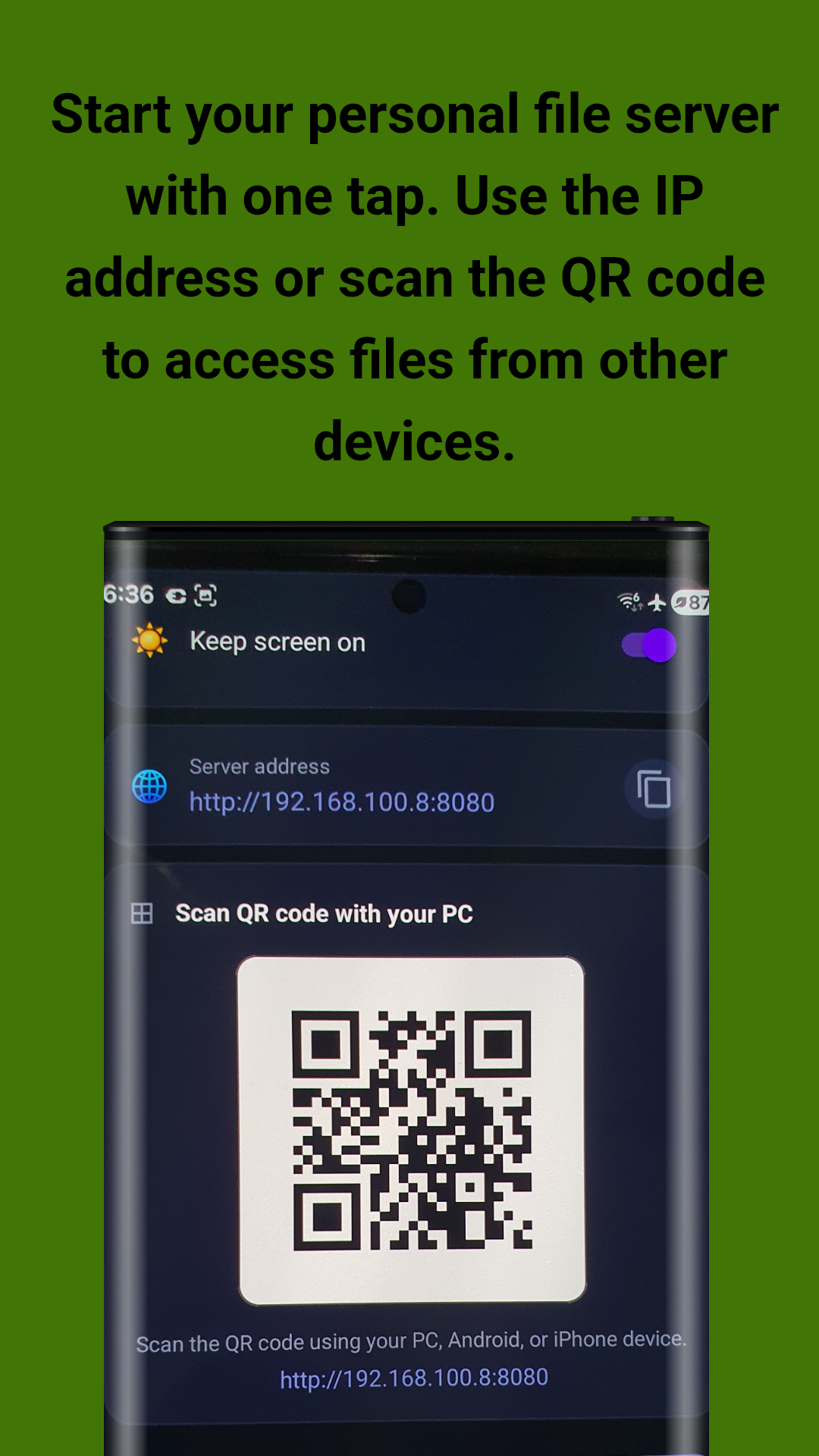
Simply scan the QR code displayed in the app with any other device to instantly access the file server. No need to type long IP addresses manually.

Cross-Platform Access

Works with any device that has a web browser โ€” Windows, Mac, Linux, iPhone, iPad, Android, and more. Access your files from anywhere on the same network.

Multiple File Types

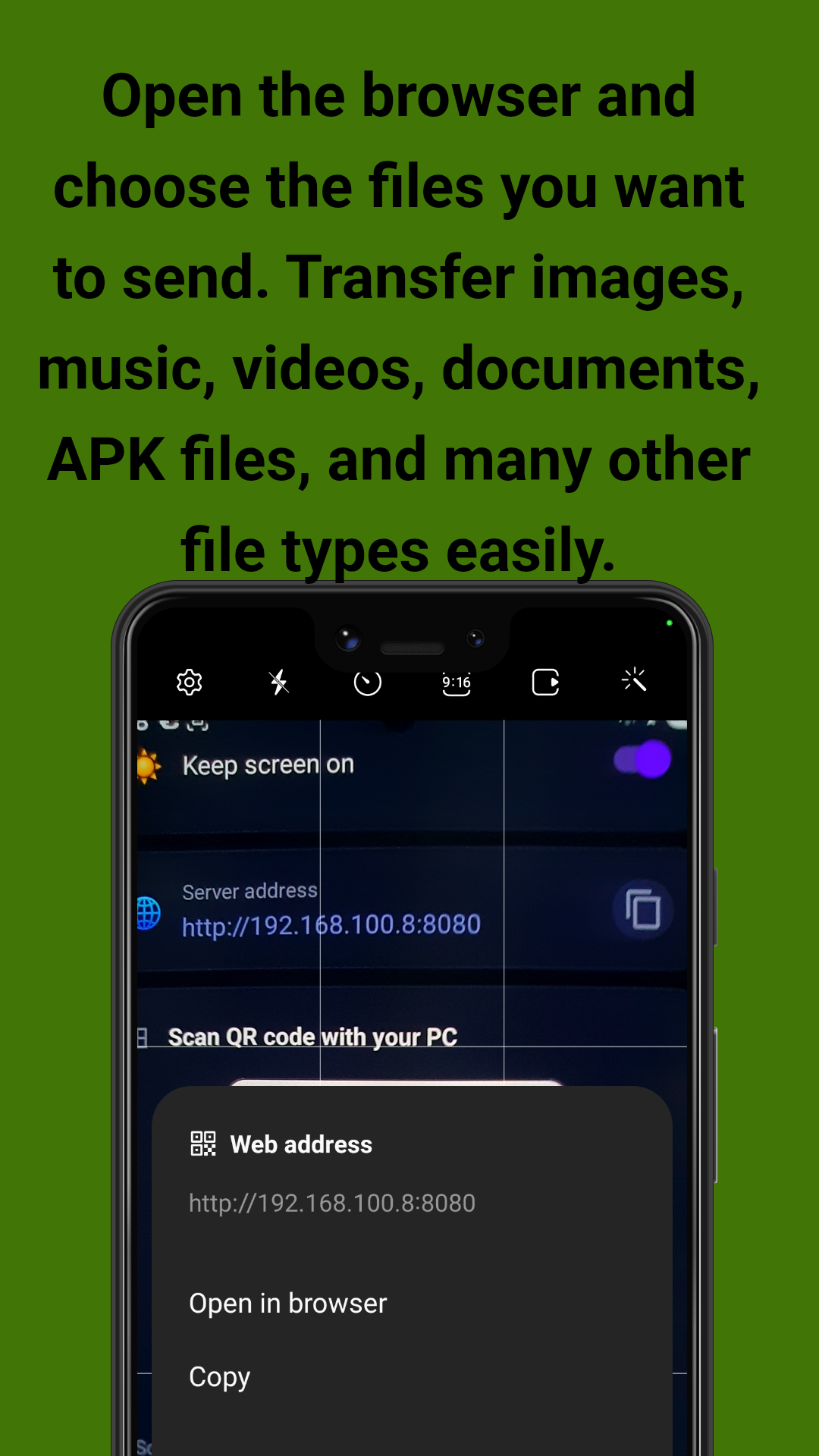
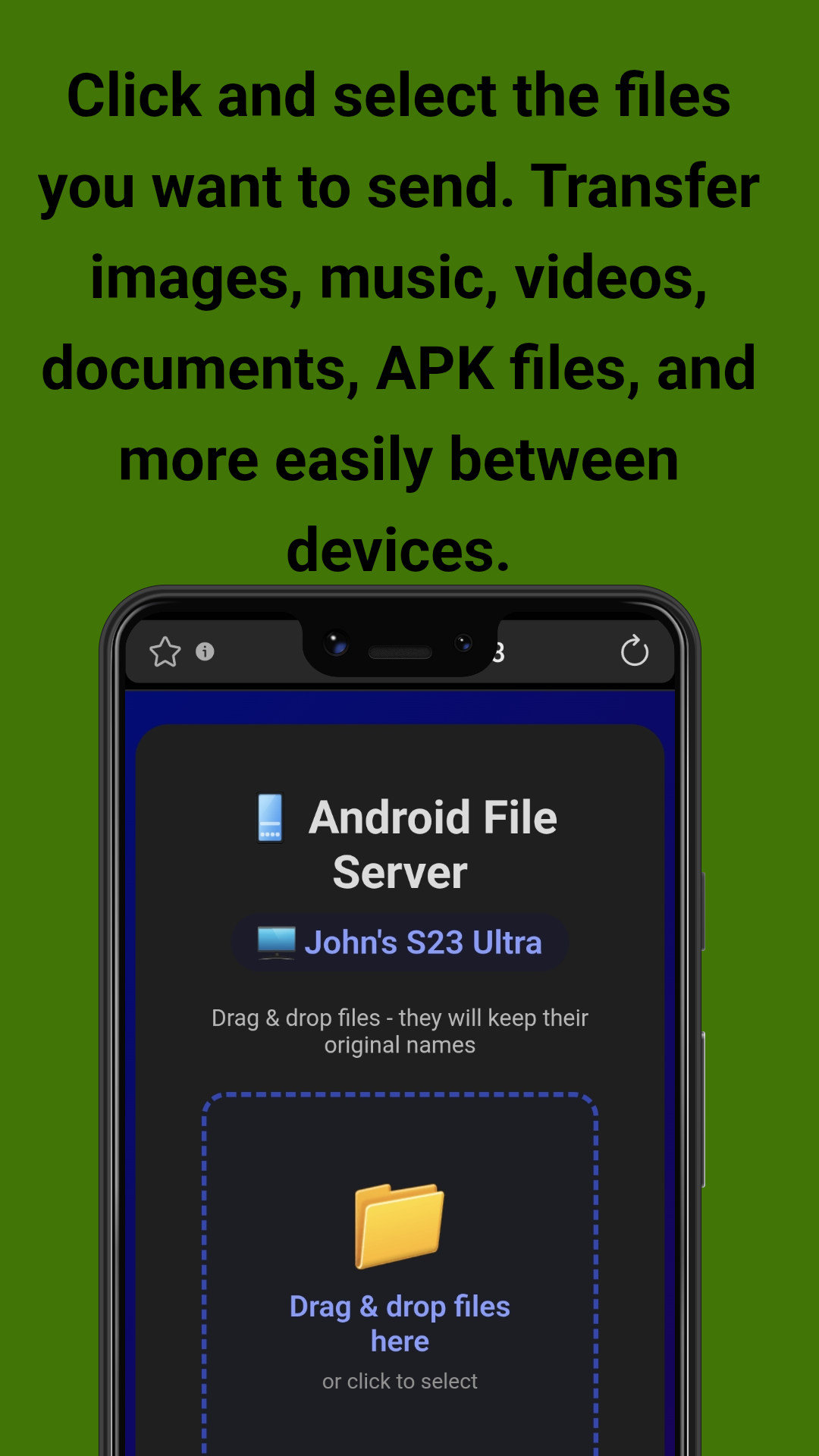
Transfer images, music, videos, documents, APK files, and many other formats. Drag and drop files directly in the browser or use the file picker.

Private & Secure

All transfers happen locally on your Wi-Fi network. No files are uploaded to the cloud or any external server. Your data stays completely private.

Lightning Fast Speed

High-speed local network transfer that outperforms cloud uploads and Bluetooth. Transfer large files in seconds, not minutes.

Camera Filters

Apply real-time filters to your remote camera feed. Choose from multiple color presets โ€” Mono, Sepia, Cool, Warm, Vintage, and more. Changes apply instantly on both phone and browser.

Flash & Torch Control

Toggle LED flash and continuous torch directly from the app or remote browser. Auto-detect if your device has an LED, and switch between Off / On / Auto flash modes.

Aspect Ratio Presets

Choose from 3:4, 9:16, 1:1, or Full aspect ratio for your camera preview and captured photos. Your preference is saved automatically for the next session.

Cache Cleanup

Built-in cache cleaner shows how much space the app is using and clears it with one tap. Keep your phone storage tidy without going to Settings.

Keep Screen On

Optional toggle keeps your screen awake while the server or camera is running. Prevents interruption during long transfers or streaming sessions.

Sound Effects

Audio feedback for key actions: server start/stop, camera start/stop, and shutter capture. Know what's happening without looking at the screen.

Remote Video Recording NEW

Start and stop video recording remotely from the browser viewer. Redesigned recording indicator with timer overlay. Videos are saved with optional audio and appear in the in-app gallery.

๐Ÿ“ท Remote Camera

Use your Android phone as a wireless webcam โ€” controlled from any browser

Live Preview in Browser

See the camera feed in real-time on your PC browser via MJPEG streaming. Low latency, smooth, and works on any modern browser โ€” Chrome, Safari, Firefox, Edge.

Remote Shutter

Trigger the shutter from the browser. Photos save directly to your Android phone's Download folder. Perfect for selfies, group photos, and time-lapse shots.

QR Code for Viewer

Scan the QR code with another device to instantly open the camera viewer. No typing needed โ€” great for setting up multi-device shoots in seconds.

Filter Picker

Pick from a curated set of filters on the fly: Normal, Mono, Sepia, Cool, Warm, Vintage, Dramatic, and more. Filters apply to both preview and captured photos.

Gallery Thumbnail

The gallery button shows a thumbnail of the last photo or video. Tap to open the full gallery and browse all captured media in a clean grid view.

Rotation Support

Rotate your phone and the preview adapts automatically. Camera re-binds seamlessly without dropping the stream or losing the URL.

Video Recording Mode NEW

Switch between Photo and Video modes with a toggle. Record video from the phone or the browser viewer. Optional microphone audio recording. Videos are saved to Download/AndroidFileServer/.

REC Indicator & Timer NEW

When recording, a red REC indicator with elapsed time appears on the preview. Both the phone and the browser viewer show the recording status in real time.

Optional Audio Recording NEW

Grant microphone permission to record audio with video. If permission is denied, video still records silently โ€” the app never blocks recording due to missing audio.

๐ŸŽฅ Video Recording

Record video from the Remote Camera โ€” with optional audio

Photo / Video Mode Toggle

Switch between Photo and Video modes with a single tap. The mode toggle appears above the shutter button on the camera preview.

Recording Timer

A recording duration indicator shows how long you've been recording. Both the phone and the browser viewer display the live REC timer.

Audio On/Off

Choose whether to record audio with your video. Audio recording requires microphone permission and can be toggled on or off at any time.

Video Gallery Support

Recorded videos appear in the gallery with a โ–ถ overlay badge. Play, share, and delete videos directly from the in-app gallery.

๐ŸŽต Audio Converter

Convert audio files between formats directly on your phone

Multiple Formats

Convert between MP3 and OGG. Perfect for compatibility with different devices and apps. Powered by LAME (MP3) and AndroidX Media3 (OGG/Opus).

Bitrate Control

Choose your output quality โ€” from small file sizes for voice notes to high bitrate for music production.

On-Device Processing

All conversion happens on your phone. No uploads, no waiting, no privacy concerns. Works completely offline.

Why Choose Android File Server?

Key advantages that make file sharing effortless

No Cables Needed

Forget about USB cables and OTG adapters. Simply connect all devices to the same Wi-Fi network and start sharing files instantly.

No Cloud Uploads

Your files never leave your local network. No Google Drive, no Dropbox, no WeTransfer. Perfect for sensitive documents and privacy-conscious users.

Works on Any Device

Receiver doesn't need to install anything. Just open a browser and visit the IP address or scan the QR code. iPhone, iPad, Mac, PC โ€” all supported.

Battery Friendly

Optimized for low battery usage. The server runs efficiently in the background with minimal power consumption. Optional "Keep screen on" toggle available.

No File Size Limits

Transfer files of any size without restrictions. Unlike cloud services with upload limits, your only constraint is your local network speed.

Open Source

Developed by John Irianto Susanto. The app is available on GitHub for transparency and community contributions. Clean, reliable, and ad-supported.

App Screenshots

See the app in action โ€” simple interface, powerful sharing

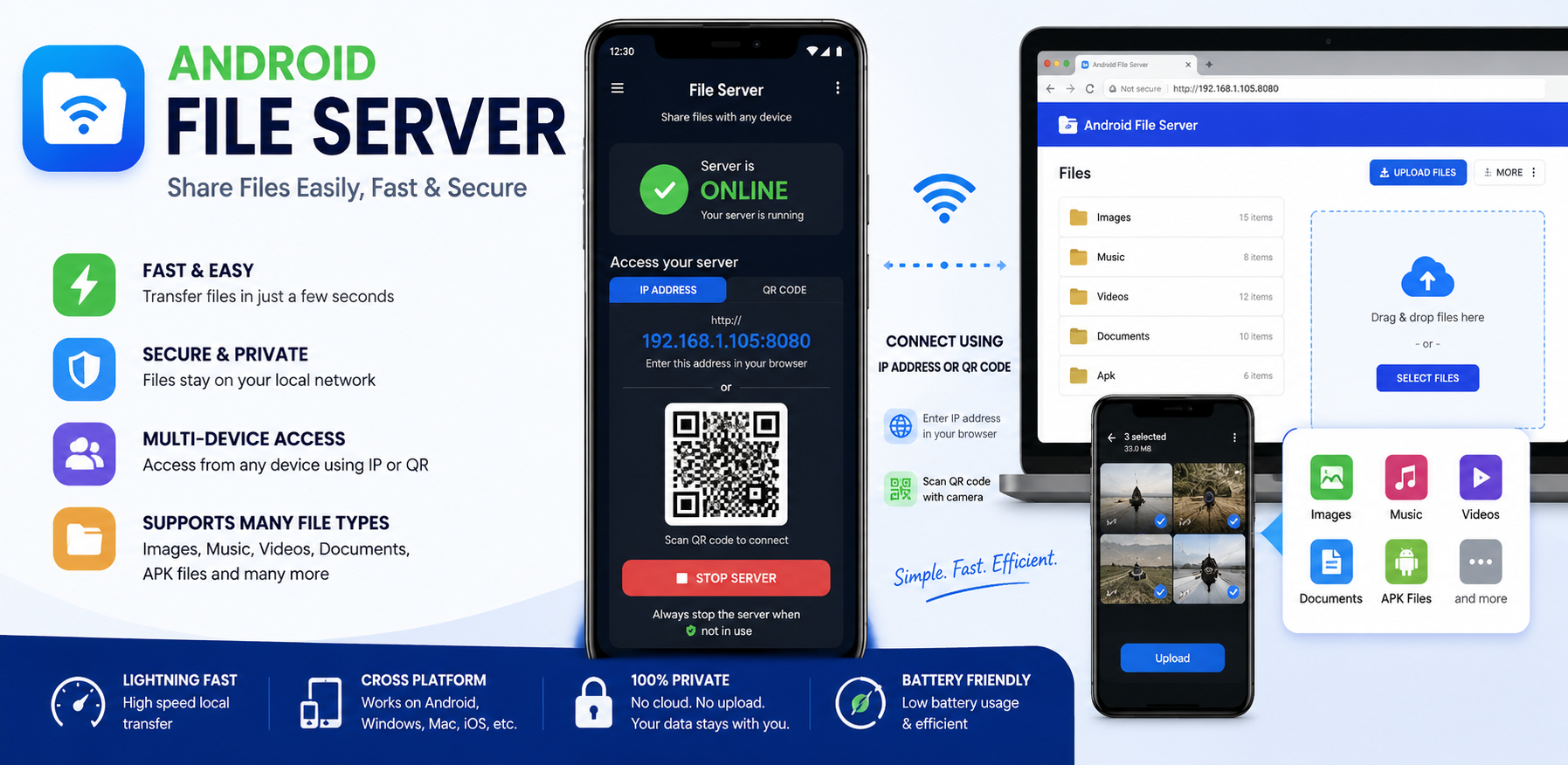
Android File Server - Feature overview showing cross-platform file sharing
Feature Overview
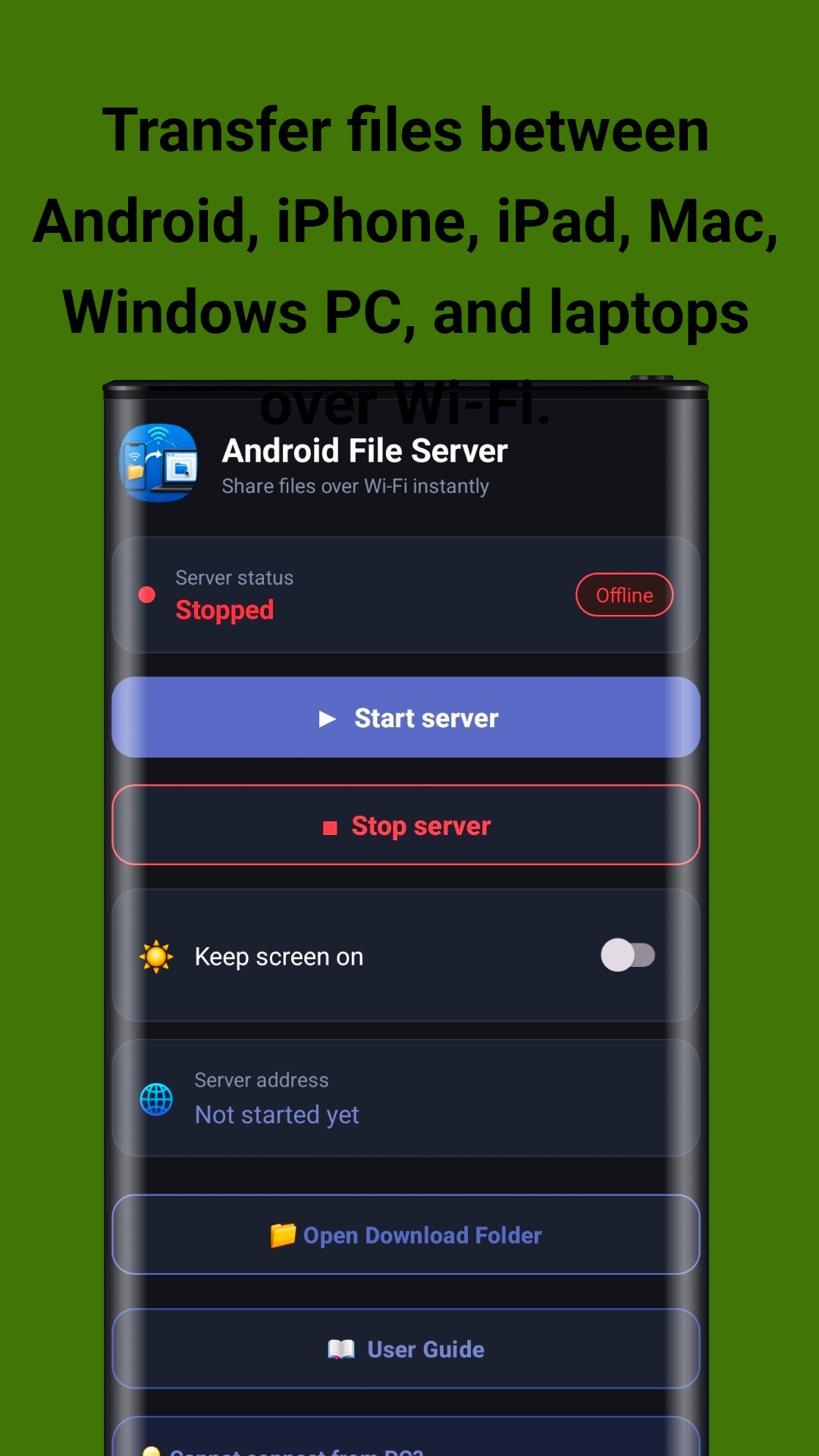
Main screen - Start and stop server with one tap
Server Control
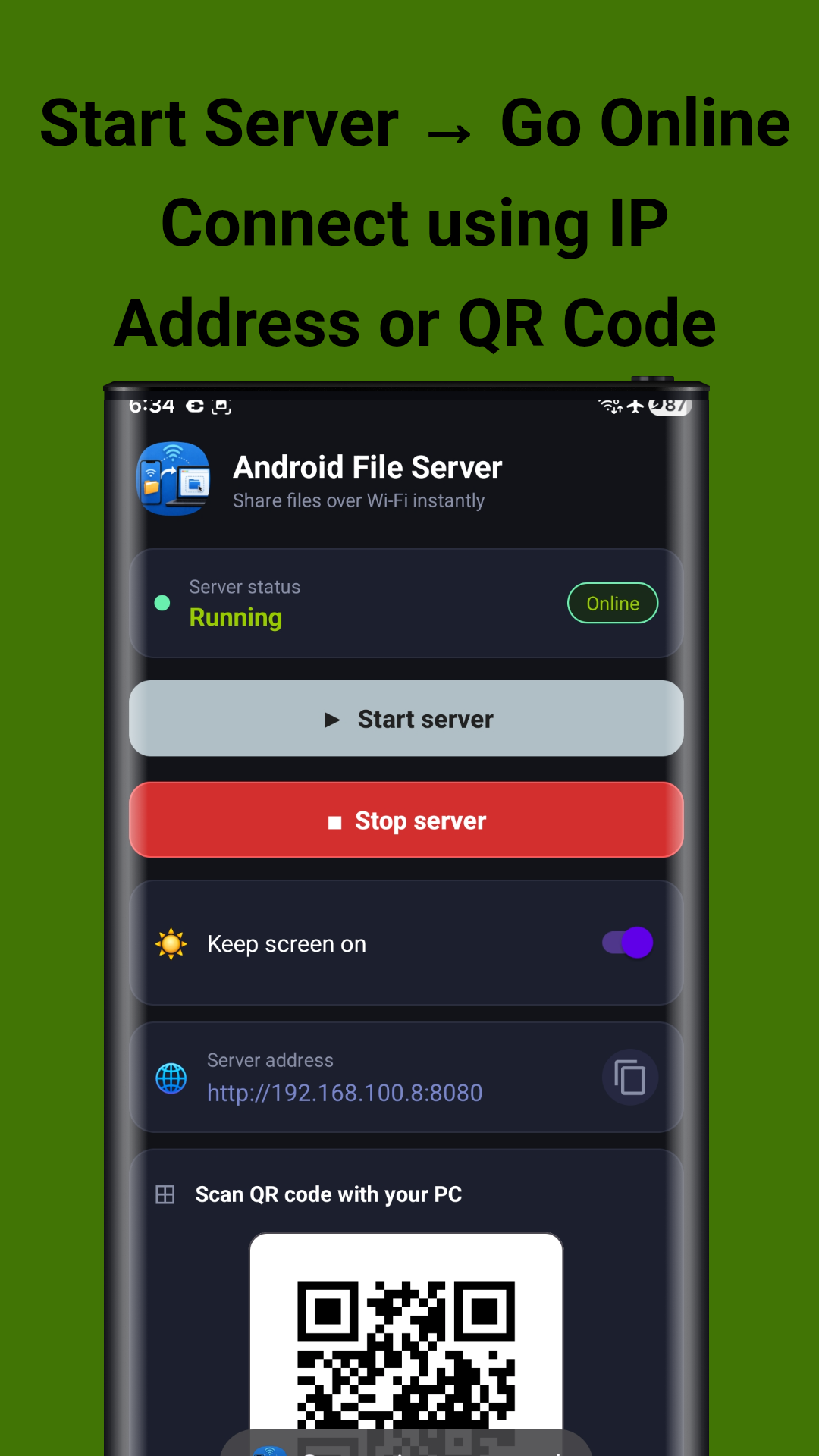
Server running with IP address and QR code
QR Code & IP Address
QR code scanning for quick connection
Scan to Connect
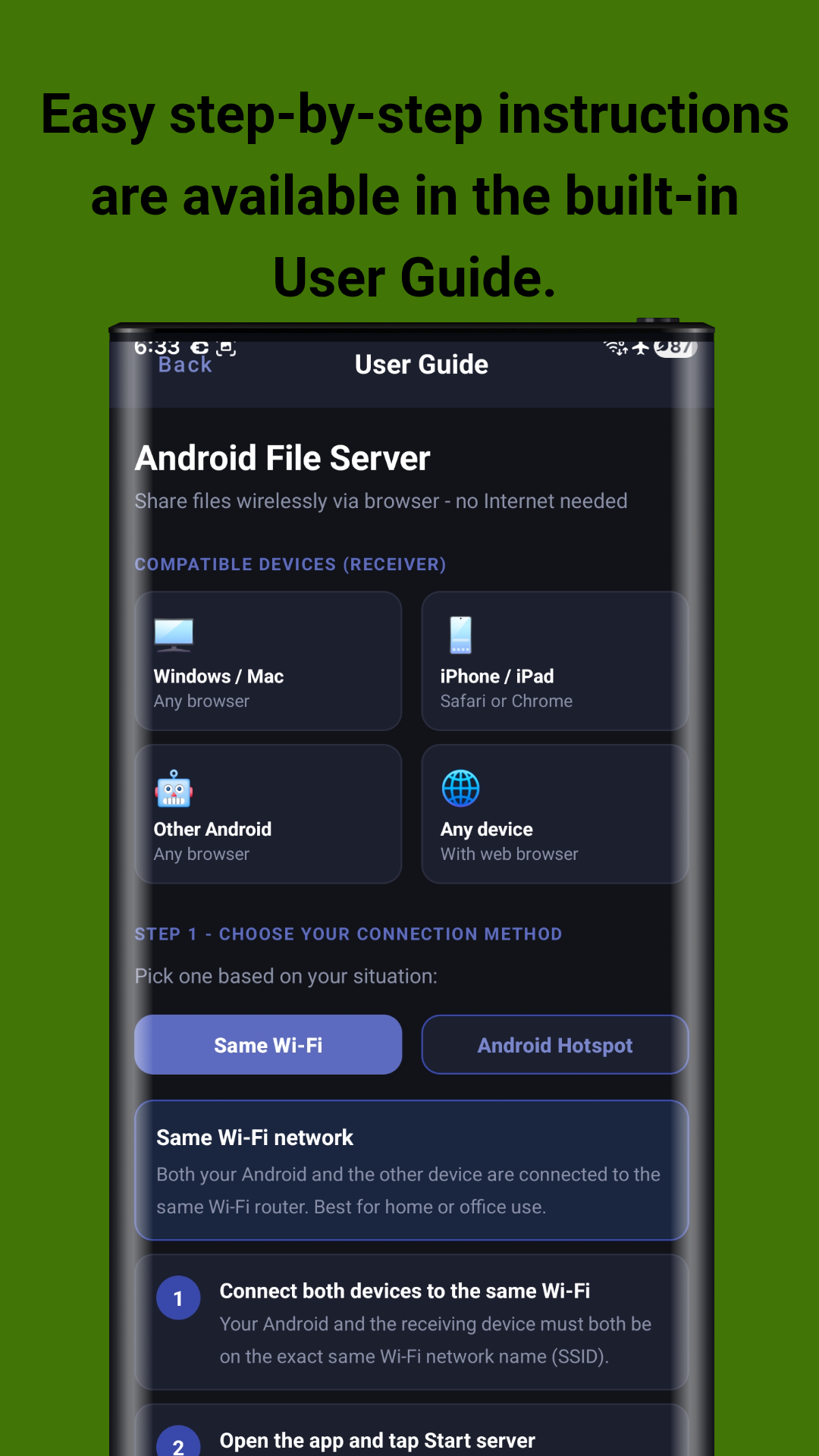
Built-in user guide with step-by-step instructions
User Guide
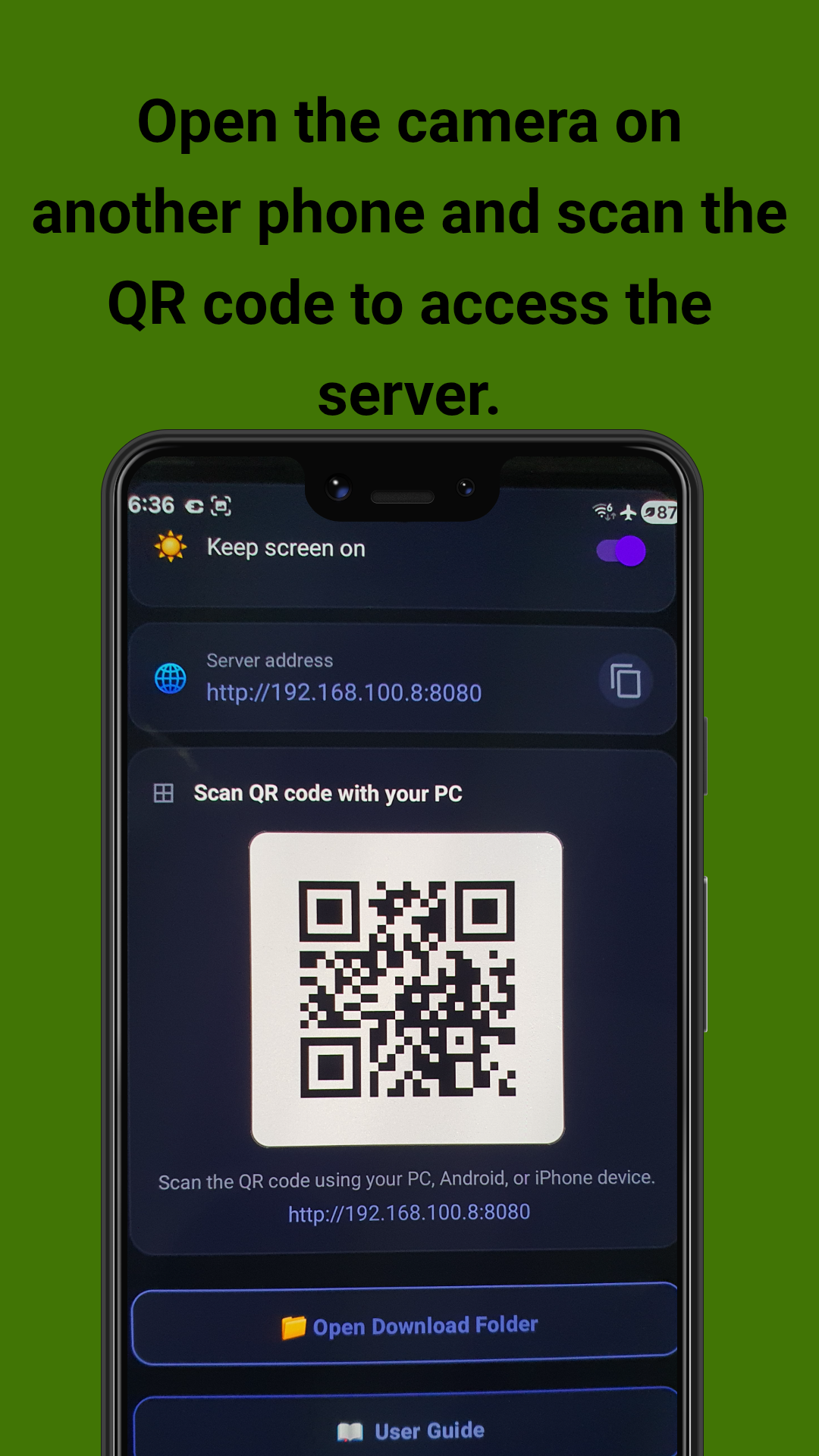
QR code scanning with another phone
Camera Scan
Web browser interface for file upload
Web Upload Interface
Drag and drop file upload area
Drag & Drop Upload

Screenshots taken on Samsung Galaxy S23 Ultra

Privacy Policy

Your data stays on your device โ€” always.

๐Ÿ”’

Data Collection

None collected by developer.

๐ŸŒ

Internet Required

Local network only / AdMob

๐Ÿ‘ค

Account Required

No account needed.

๐Ÿ“ข

Ads

Google AdMob โ€“ opt out possible.

Air Drop - Android File Server does not collect, store, or share any personal information. All file transfers happen locally on your Wi-Fi network. Files are never uploaded to any external server or cloud.

The Remote Camera feature streams live video only within your local Wi-Fi network. No frames, photos, or streams are sent to the internet. Captured photos and recorded videos are saved directly to your phone's storage. The developer does not have access to the camera preview, captured photos, or video recordings.

Video Recording with Optional Audio: When you start a video recording, video is saved to Download/AndroidFileServer/ on your device. If you grant the microphone permission (RECORD_AUDIO), audio is recorded together with the video. If you deny or revoke microphone permission, video records silently โ€” the app never blocks recording due to missing audio. Audio is captured only during active video recording, never in the background, and is never transmitted over the internet.

Microphone Permission: The microphone is used exclusively for recording audio synchronized with video in Remote Camera's video mode. It is never used for background audio recording, voice recognition, phone call recording, audio fingerprinting, or advertising. The permission is optional and can be revoked at any time.

The app uses Google AdMob for advertisements and Firebase Analytics for anonymous usage data. AdMob and Firebase Analytics do not have access to the microphone, camera, or any audio/video recordings created by the app.

You can opt out of personalized ads via Settings โ†’ Google โ†’ Ads โ†’ Opt out of Ads Personalization on your device.

For full details, read the complete Privacy Policy โ†’

User Guide

Step-by-step instructions to start sharing files and more

1

Installation & Setup

Download the app from Google Play Store or GitHub. Install and open the app. Grant the following permissions:

  • Wi-Fi / Network Access: Required to create and run the local file server.
  • Storage Access: Needed to access files for sharing and saving received files.
  • Camera Access: Required only for the Remote Camera feature.
  • Microphone Access (optional): Required only for audio recording in video mode.
  • Notifications: Required for the foreground service notification.
2

Connect Devices to Same Wi-Fi

Make sure both your Android device (sender) and the receiving device are connected to the same Wi-Fi network. This can be:

  • Your home or office Wi-Fi router.
  • Android Hotspot (mobile hotspot from the sender device).
  • Any shared local network connection.
3

Start the File Server

Open the Android File Server app and tap the "Start Server" button. The app will:

  • Display your device's local IP address (e.g., http://192.168.1.100:8080).
  • Generate a QR code for quick connection.
  • Show server status as "Running" with a green indicator.
  • Auto-enable "Keep screen on" toggle to prevent interruption.
4

Connect & Transfer Files

On the receiving device (PC, Mac, iPhone, iPad, or another Android), do one of the following:

  • Scan QR Code: Open the camera app and scan the QR code displayed on your Android device.
  • Enter IP Address: Open any web browser and type the IP address shown in the app.
  • Upload to Android: Drag and drop files into the browser or click "Select Files".
  • Download from Android: Browse the shared folders and click on any file to download.
5

๐Ÿ“ท Using the Remote Camera

Tap "Open Remote Camera" on the main screen to launch the camera module:

  • Start Camera: Tap "โ–ถ Start Remote Camera" โ€” a URL and QR code will appear.
  • Open on PC: Scan the QR code or open the URL on your PC browser.
  • Control Filters: Pick filters on the phone or from the browser โ€” they sync instantly.
  • Flash / Torch: Use the โšก and ๐Ÿ”ฆ buttons to control the LED.
  • Aspect Ratio: Choose 3:4, 9:16, 1:1, or Full at the top of the preview.
  • Capture: Tap the shutter on the phone or click the button in the browser.
  • Gallery: Tap the gallery icon to view all captured photos and videos.
6

๐ŸŽฅ Recording Video (NEW)

Record video from the Remote Camera with optional audio:

  • Switch to Video Mode: Tap the "VIDEO" toggle above the shutter button. The shutter button changes to a red record button.
  • Start Recording: Tap the red record button on the phone or click the record button in the browser viewer.
  • Recording Indicator: A red REC indicator with elapsed time appears on the preview. Both the phone and the browser show the recording status.
  • Audio: If you granted microphone permission, audio is recorded with the video. If not, video records silently.
  • Stop Recording: Tap the record button again to stop. The video is saved to Download/AndroidFileServer/.
  • Video Gallery: Recorded videos appear in the gallery with a โ–ถ overlay badge. Tap to play, share, or delete.
7

๐ŸŽต Using the Audio Converter

Tap "Open Audio Converter" on the main screen:

  • Pick Files: Select one or multiple audio/video files from your device storage.
  • Choose Format: Pick the target output format (MP3 or OGG).
  • Select Bitrate: Choose your preferred output bitrate.
  • Convert: Tap "Convert All" โ€” the process runs entirely on your phone.
  • Save: Converted files are saved to Download/AndroidFileServer/Audio/.
8

๐Ÿ“ File Browser & Cache Cleanup

Manage your received files and free up space:

  • Open Download Folder: Browse all files in Download/AndroidFileServer/.
  • Preview Files: Tap images or videos to preview them inline.
  • Clear Cache: Use the ๐Ÿงน Clear Cache card to free up storage โ€” shows current usage and clears with one tap.
9

Stop & Troubleshooting

When done, tap "Stop Server" or "Stop Camera" to close the connection. If you encounter issues:

  • Can't connect: Ensure both devices are on the exact same Wi-Fi network (same SSID).
  • Firewall blocking: Disable firewall temporarily or allow port 8080 on your router.
  • Server stops unexpectedly: Enable "Keep screen on" toggle or disable battery optimization for the app.
  • Camera preview lag: Move closer to the Wi-Fi router for better signal strength.
  • VPN issues: Disable VPN on your PC โ€” it may block access to the local server.
  • Video recording fails: Ensure the phone screen is ON and the app is in the foreground.

Get Android File Server

Available for free on Google Play Store and GitHub. Start sharing files wirelessly today.

Get it on Google Play
View source on GitHub

Developed with by John Irianto Susanto